
I’ve decided to 1-up the game from my previous post and zip something that isn’t really a real file but rather a blob in a Sitecore database. The script below is based heavily on the last post but instead of just zipping content of a flat folder traverses the Sitecore item tree and zips all files beneath the current folder. If you have downloaded the 2.1 version of the Sitecore PowerShell Console from the Sitecore Marketplace you will actually have the script deployed on your system already. Here’s how it looks like for your user in the Content Editor:
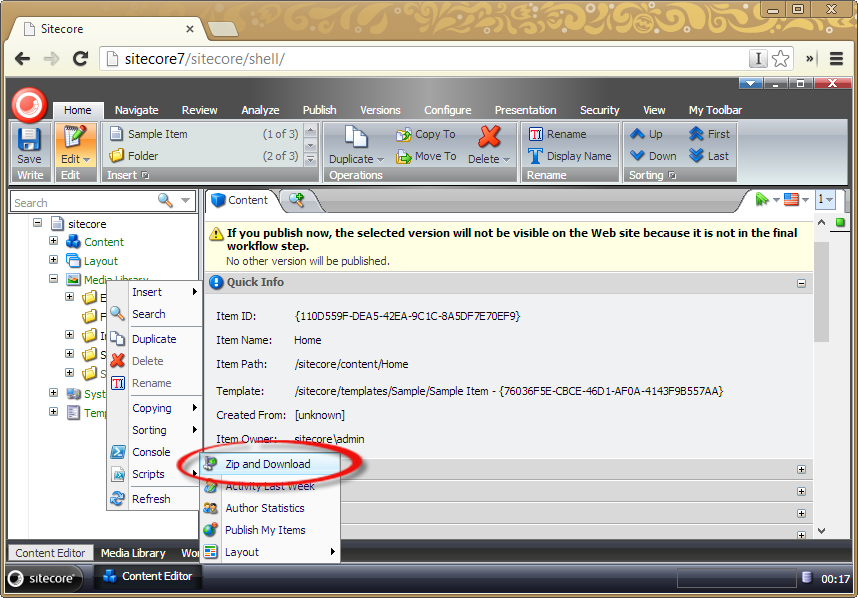
The script that performs the operation looks as follows:
 1###########################################################################
 2#                                                                         #
 3# The script zips all files in the media library under the current folder #
 4# and allows users to download the zip.                                   #
 5#                                                                         #
 6###########################################################################
 7
 8#
 9# The ZipFiles function is based on noam's answer
10# on the following Stack Overflow's page: http://bit.ly/PsZip
11#
12function ZipItems( $zipArchive, $sourcedir )
13{
14  Set-Location $sourcedir
15  [System.Reflection.Assembly]::Load("WindowsBase,Version=3.0.0.0, `
16      Culture=neutral, PublicKeyToken=31bf3856ad364e35") | Out-Null
17  $ZipPackage=[System.IO.Packaging.ZipPackage]::Open($zipArchive, `
18      [System.IO.FileMode]::OpenOrCreate, [System.IO.FileAccess]::ReadWrite)
19  $items = gci -recurse $sourceDir
20  [byte[]]$buff = new-object byte[] 40960
21  $i = 0;
22  ForEach ($item In $items) {
23    $i++
24    if([Sitecore.Resources.Media.MediaManager]::HasMediaContent($item)){
25      $mediaItem = New-Object "Sitecore.Data.Items.MediaItem" $item;
26      $mediaStream = $mediaItem.GetMediaStream();
27      $fileName = Resolve-Path -Path $item.ProviderPath -Relative
28      $fileName = "$fileName.$($item.Extension)" `
29        -replace "\\","/" -replace "./", "/"
30      # Print out the file - the list will show up once the file is downloaded
31      "Added: $fileName"
32      # Show progress for the operation
33      Write-Progress -Activity "Zipping Files " `
34        -CurrentOperation "Adding $fileName" `
35        -Status "$i out of $($items.Length)" `
36        -PercentComplete ($i *100 / $items.Length)
37      $partUri = New-Object System.Uri($fileName, [System.UriKind]::Relative)
38      $partUri = [System.IO.Packaging.PackUriHelper]::CreatePartUri($partUri);
39      $part = $ZipPackage.CreatePart($partUri, `
40        "application/zip",  `
41        [System.IO.Packaging.CompressionOption]::Maximum)
42      $stream=$part.GetStream();
43      do {
44        $count = $mediaStream.Read($buff, 0, $buff.Length)
45        $stream.Write($buff, 0, $count)
46      } while ($count -gt 0)
47      $stream.Close()
48      $mediaStream.Close()
49    }
50  }
51  $ZipPackage.Close()
52}
53
54#the location will be set by PowerShell automatically based on which item was clicked
55$location = get-location
56$dateTime = Get-Date -format "yyyy-MM-d_hhmmss"
57$zipName = Split-Path -leaf $location | % { $_ -replace " ", ""}
58$dataFolder = [Sitecore.Configuration.Settings]::DataFolder
59$zipPath = "$dataFolder\$zipName-$datetime.zip"
60
61# Call the Zipping function
62ZipItems $zipPath $location
63
64#Send user the file, add -NoDialog if you want to skip the download dialog
65Download-File -FullName $zipPath | Out-Null
66
67# Cleanup after yourself
68Remove-Item $zipPath
69
70# Close the results window - we don't really need to see the results
71Close-Window
And here’s what your user will show after it gets run:
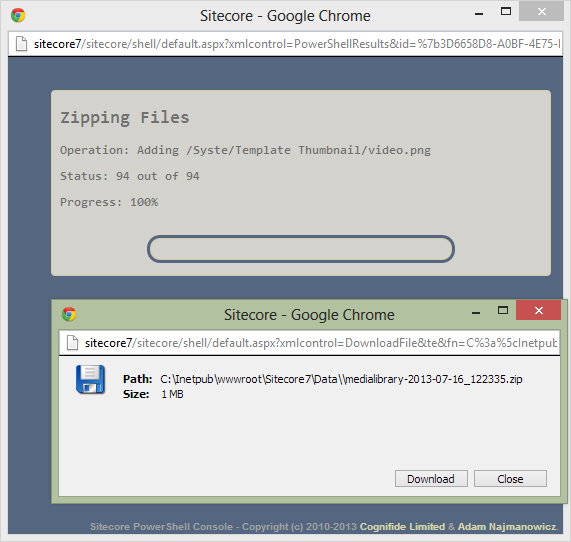
Yep, the script actually shows progress while the files are being zipped and then pops up the download dialog showing you the file size, quite rich experience for less than 50 lines of code, eh?
Now how do we integrate the script with the Content Editor?
All you really need to do is Save the script in the proper place in the library:
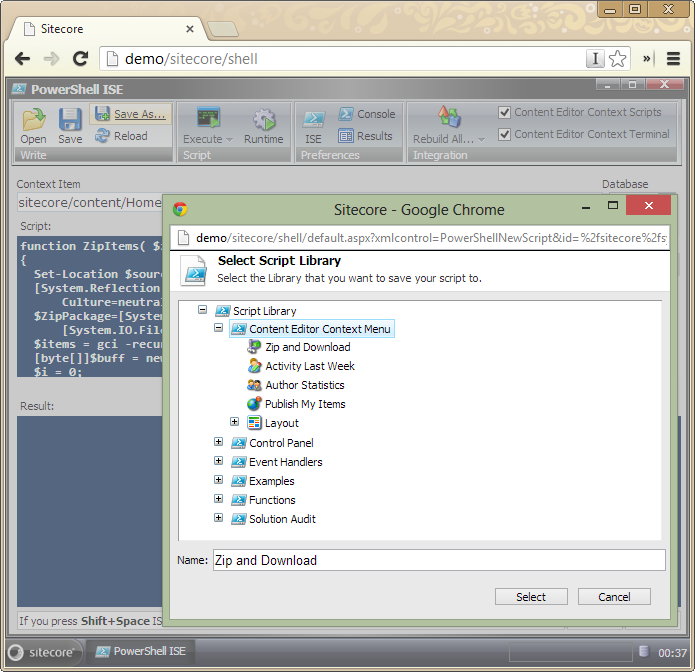
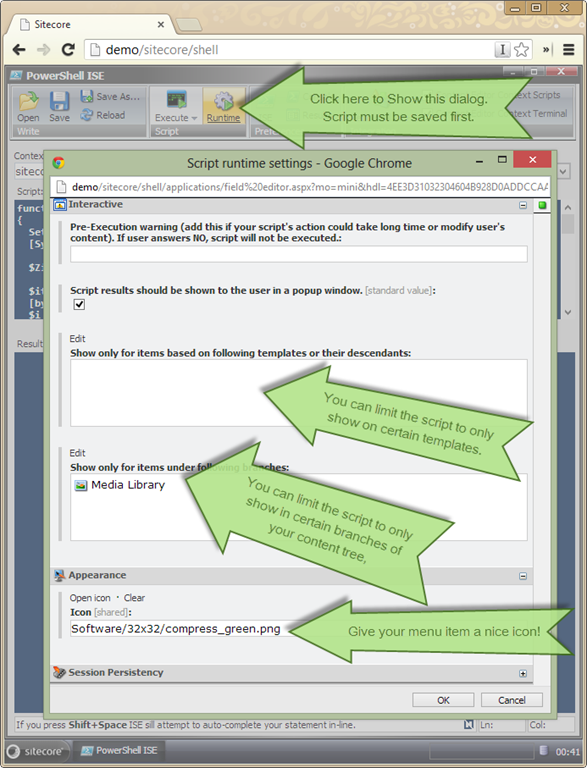
Once the Script is saved, we can limit the script to be available only when you right click on items in in the Media Library by editing the script Runtime properties:
Happy scripting!
Comments